
Anonymisation in Surveys – Sending an email that doesn’t identify the participant
When distributing anonymous surveys, the survey responses are not linked to a given participant. Participants are not tracked to identify whether they have responded, although if a participant opts out of the survey Snap XMP Online records this to ensure that the participant does not receive further emails. You can set up your participant database in Snap XMP Online or Snap XMP Desktop. This tutorial describes how to set up the participant list in Snap XMP Online. Please see worksheet Anonymisation in Surveys – Sending an email that doesn’t identify the participant (Snap XMP Desktop) on how to set up the participant database in Snap XMP Desktop.
Sending an anonymous survey invitation
What you need
- A unique email address for each participant.
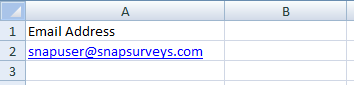
Uploading the participants without logins
You can upload a participant list that does not require the participant to login or track the completion status. The list of participants is used to manage emails and reminders. The survey is anonymous but anyone can complete the questionnaire using the interview link.
- Open your survey in Snap XMP Online and from the survey’s Summary click on the Collect link.
- Select the Participants side menu to view the participants and invitations. The Participants Overview shows by default.
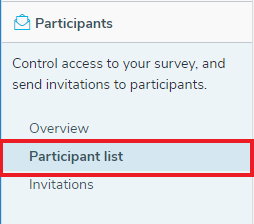
- Click on the Participant list menu item to view the participants.
- Click on Upload Participants to open the Upload Participants Wizard.
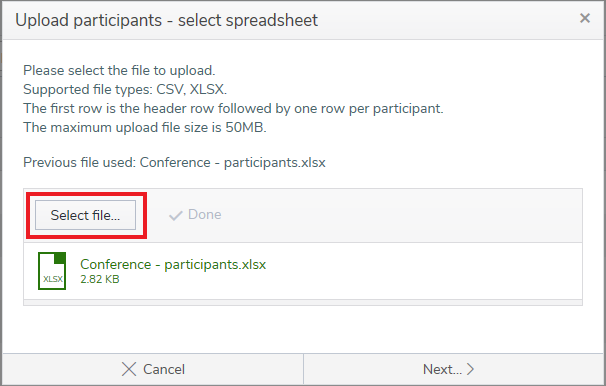
- On the first page, click Select file to add the file with the participants’ data. The accepted formats are CSV and XLSX. Click Next.
- Select the survey options for sending email invitations.
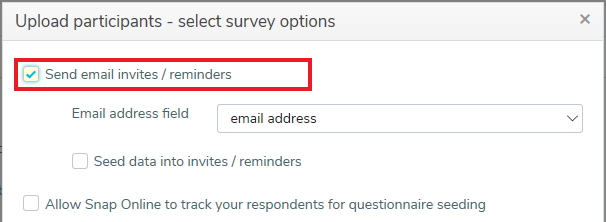
- Select Send email invites/reminders to be able to send email invitations and reminders.
- In Email address field, select the spreadsheet column that contains the email address for the participants. This field is mandatory and Snap XMP Online attempts to match the most likely column.
- Do not select Seed data into invites/reminders as the seeded data could identify the participant.
- Click Next. The overview summarizes the chosen settings for you to review.
- Click Upload to upload the participants to the survey. The results are displayed when the upload is complete. Click Finish to close the wizard.
Uploading the participants with anonymous logins
You can upload a participant list that does requires the participant to login so that you can track the completion status, but the response is anonymous as it does not include an identifier. The survey is anonymous and only the invited participants can complete the questionnaire using their interview link.
- Open your survey in Snap XMP Online and from the survey’s Summary click on the Collect link.
- Select the Participants side menu to view the participants and invitations.
- Click on the Participant list menu item to view the participants.
- Click on Upload Participants to open the Upload Participants Wizard.
- On the first page, click Select file to add the file with the participants’ data. The accepted formats are CSV and XLSX. Click Next.
- Select the survey options for sending email invitations.
- Select Send email invites/reminders to be able to send email invitations and reminders.
- In Email address field, select the spreadsheet column that contains the email address for the participants. This field is mandatory and Snap XMP Online attempts to match the most likely column.
- Do not select Seed data into invites/reminders as the seeded data could identify the participant.
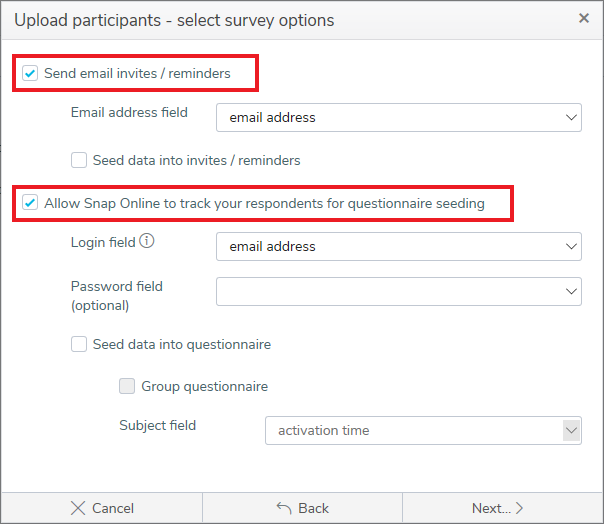
- Select Allow Snap Online to track your participants for questionnaire seeding. This allows you to track your participant when they have responded.
- In the Login field, select the spreadsheet column that contains the login for the participants. This field is mandatory and Snap XMP Online attempts to match the most likely column.
- You can also select a Password field.
- Click Next. The overview summarizes the chosen settings for you to review.
- Click Upload to upload the participants to the survey. The results are displayed when the upload is complete. Click Finish to close the wizard.
Change interview access
You will need to make sure that there is no identifier included with the response data.
- In the Participants side menu, select Overview. This displays the participants settings and is available after you have uploaded the participant list.
- Click Change interview access to change the interview access settings. This opens the Interview access dialog.
- Clear the Identify participants in the response data so that the response data does not include an identifier.
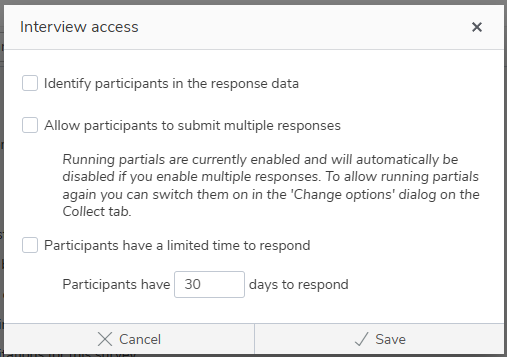
- Click Save to save the changes. This updates the settings in the Participant overview.
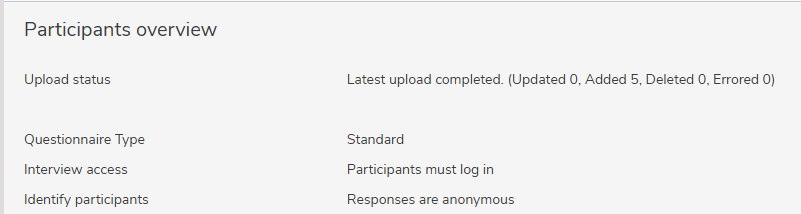
The Interview access setting shows that the participants must log in. The Identify participants setting shows that the responses are anonymous and the logged-in participants will not be identified in the response data.
Creating the email invitation
- Click on the Invitations menu item to view the email invitations and reminders.
- Click Add Invitation to create an email invitation in the Email Editor.
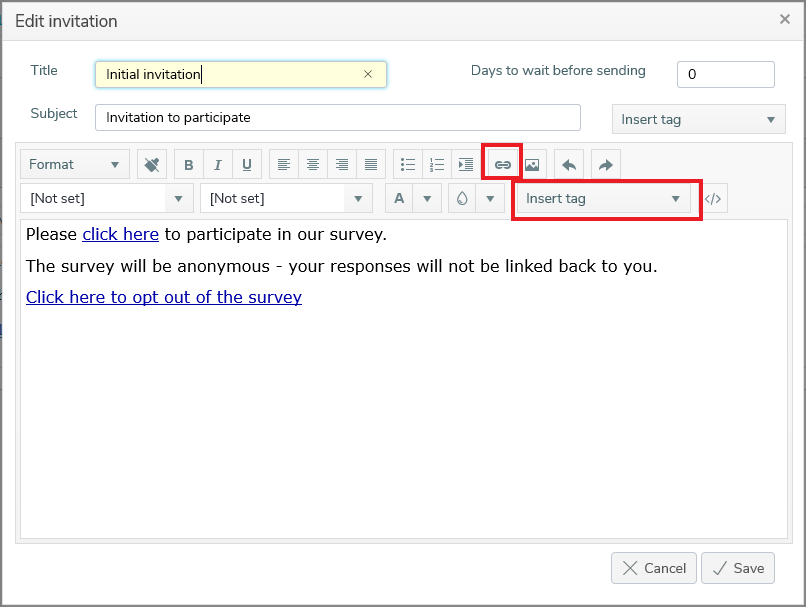
- Add a heading in Subject.
- Type the email message in the message area.
- Click Insert tag to add a SurveyLink link. You need to include this link in the email message. This provides a link for the participant to access the survey.
- You should also include a link enabling your participants to opt out of the survey. Click Insert tag and select the OptOut link.
- The link text can be customised by clicking Insert hyperlink
 .
. - Click Save to save the email.
- You can manage the list of participants in Snap XMP Online.
If there is a topic you would like a tutorial on, email to [email protected]