
Create using AI
Create using AI uses artificial intelligence to quickly and easily build a questionnaire, turning your ideas, question lists and documents, into a series of AI-generated questions about your survey subject. Enhance your survey by including additional questions, images, survey logic and other features with the editor.
Start creating the survey
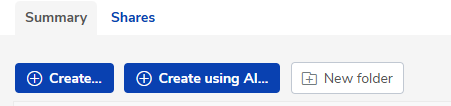
In the Snap Online landing page or any folder, click the Create using AI button.
Enter a name for the survey.

Create using AI
Enter the prompt that the AI generation process will use to create the survey questions.
This can be entered in several different formats:
- a survey description
- a list of questions
- a selection from a Word, Excel or PowerPoint document.
You can choose to add a title at the start of the prompt or let AI generate one. The available question types are single choice, multiple choice, and open-ended questions.
Repeating the same prompt may generate different questions or answer options each time, as this depends on the AI generation.
Survey description
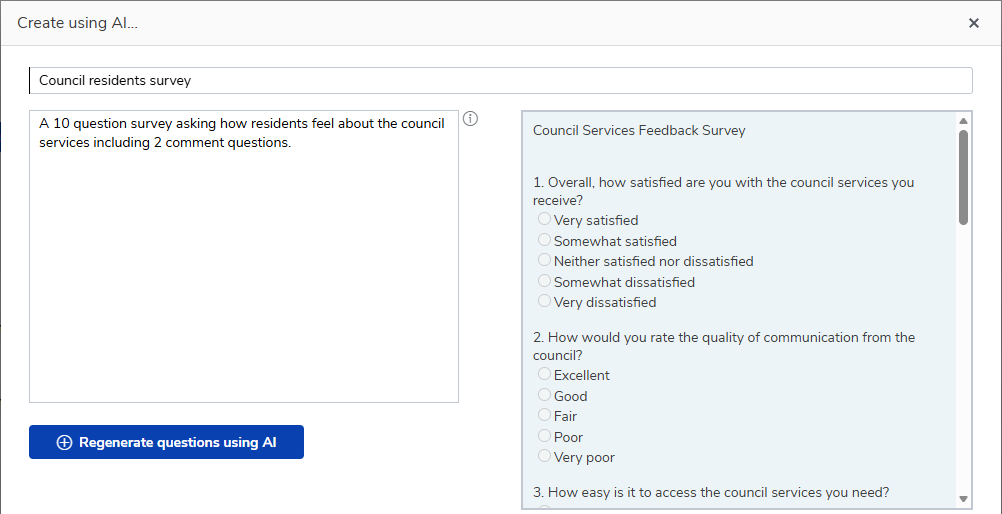
Describe the type of survey that you want to create. You can include information, such as, questionnaire topic, number of questions, type of questions. The prompt can be a simple one sentence instruction, or a longer description containing more details.
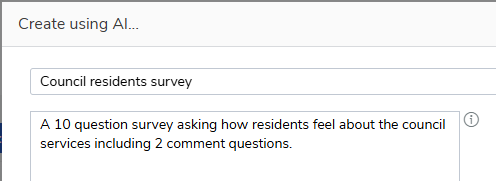
Click the Generate questions using AI button to generate the questions.
List of questions
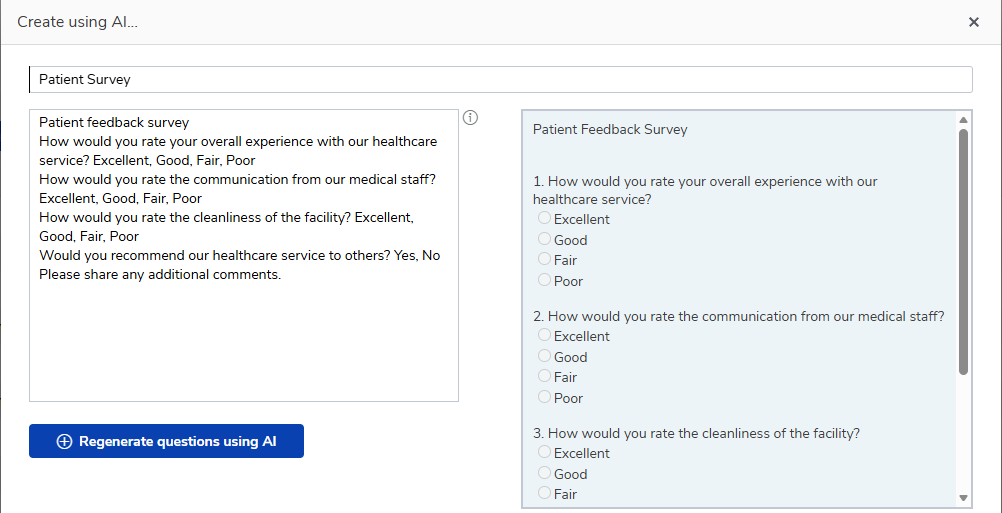
Enter a list of questions that you want to include in the questionnaire. You can choose to include answer choices or the question type.
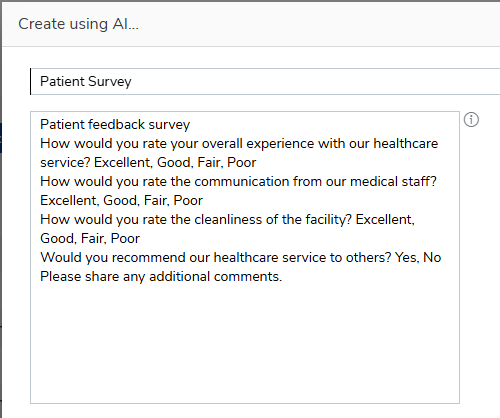
Click the Generate questions using AI button to generate the questions.
Selection from Word, Excel or PowerPoint documents
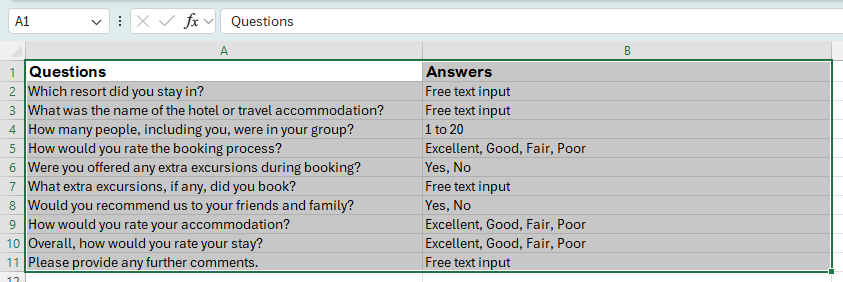
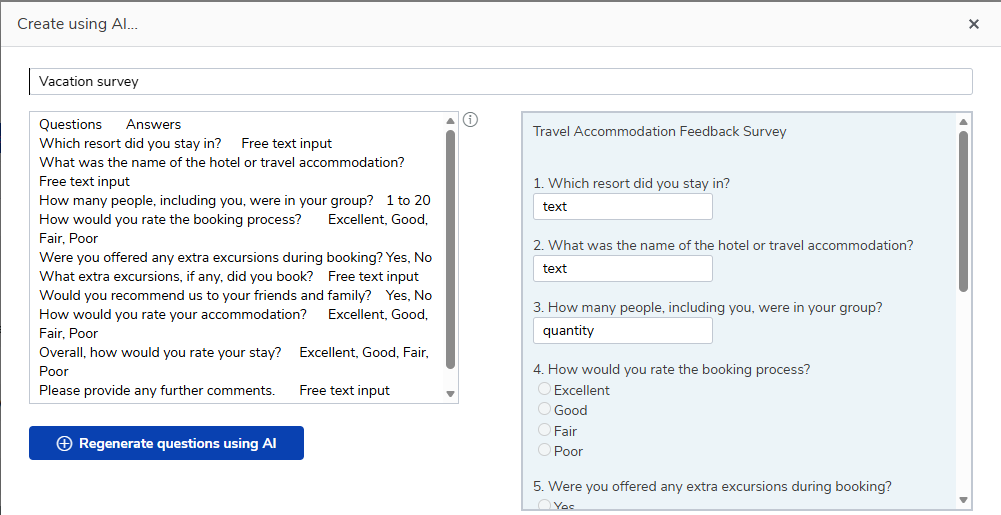
Existing questionnaires already available in Word, Excel and PowerPoint formats, can be copied into the prompt area. The AI generation creates the questions from the prompt. This may not be an exact copy depending on the selection provided.
Select the question and answer text in the document, such as, cells in an Excel worksheet.
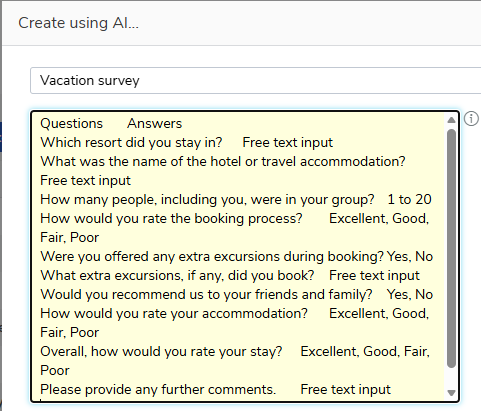
Copy and paste them to the prompt.
Click the Generate questions using AI button to generate the questions.
Regenerating questions
Review the questions to make sure you are happy with them. You can choose to regenerate the questions, or create the survey and customise the questions later in the editor.
To try again, edit the prompt then click the Regenerate questions using AI button. This generates new questions, which replace the previously generated questions.
Create the survey
When the generated questions are set, click the Create survey button.
This creates the survey and opens the questionnaire in the editor. You can choose to add further questions, images and other information in the editor.
Customise in the Editor
You can customise the AI generated single choice questions, multiple choice questions and open-ended questions, or add new questions.
Additionally, images, links and variable fields are available in the editor to enhance the questionnaire.
Survey logic can be included to provide routing, validation and masking.