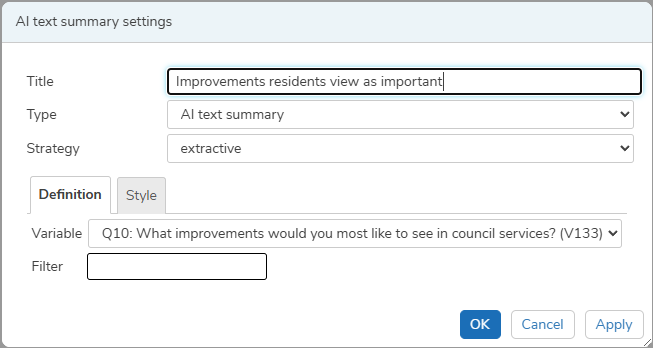
Adding AI text summary
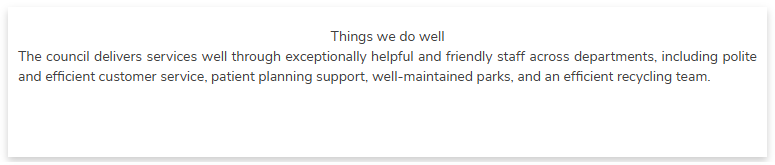
The AI text summary uses AI to provide a summary of the themes and recurring comments to your survey’s open-ended text questions, helping you quickly identify the main areas that your respondents find important.
Terms and Conditions using AI for the first time
You need to agree to the terms and conditions when using Generate AI for the first time.
Clicking the AI Create button for the first time asks you to accept the terms before using the AI features. Click the links to view each document. If you accept the terms, select the I accept checkbox.
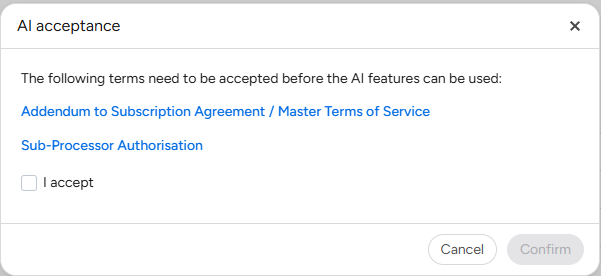
Click Confirm to accept the terms and conditions.
Insert an AI text summary
- Open the dashboard and select the Insert widget menu.
- In the Text & Images menu, select AI text summary and drag to the dashboard editor. This adds the AI text summary to the dashboard and opens the settings.
- In Title, enter the title description for the AI text summary.
- The Type defaults to AI text summary, but you can change the type to any of the available charts or tables.
- Choose the Strategy you would like the AI to use. The options are abstractive, which generates a new summary rephrased using AI’s own words, or extractive, which selects key sentences directly from the original text.
AI text summary settings
The Definition tab defines which data is used in the list.
Definition
The Table type is set to List. The other options are not available for a list.
- In Variable, choose a variable from the list of the available open-ended text variables. The AI text summary uses the data responses of the selected variable to generate the summary.
- In Filter, enter the filter criteria, e.g. Q1=2.
Save and Apply
- Click OK to save all the changes.
- Click Apply to apply the changes.
- Click Cancel to abandon the changes.
Click Refresh data to update the AI text summary with the latest response data.
Convert to narrative
You can use the AI text summary as the basis for a narrative. To do this, right click on the AI text summary and select Edit Text from the popup menu. This lets you edit the text from the summary and save it as narrative. You cannot revert back to the AI text summary once you have done this.
Resize the list
You can resize the list box by dragging the resize arrows.
Examples
Abstractive summary
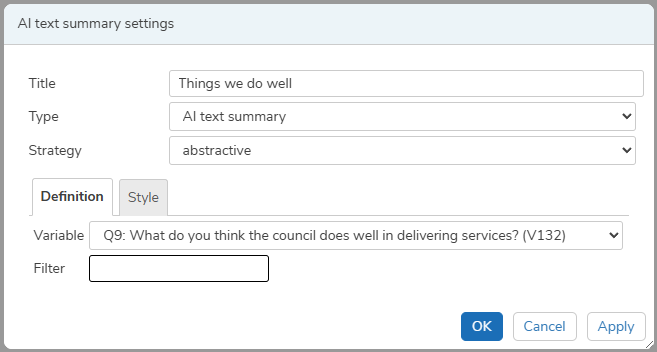
The AI text summary uses the abstractive strategy to show the themes from the residents’ responses on things that the council do well.
Select the abstractive strategy and the variable Q9, which contains the comments with positive feedback on council services.
Extractive summary
The AI text summary uses the extractive strategy to show the themes from the residents’ responses on improvements they would like to see.

Select the extractive strategy and the variable Q10, which contains the comments about improvements to council services.