Adding lists
Analyse and filter your open-ended questions and comments using lists, helping you to understand your respondents’ feedback.
Insert a list
- Open the dashboard and select the Insert widget menu.
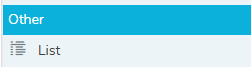
- In the Other menu, select List and drag to the dashboard editor. This adds the list to the dashboard and opens the list settings.
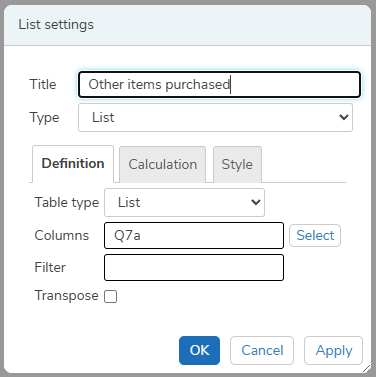
- In Title, enter the title description for the list.
- The Type defaults to List, but you can change the type to any of the available charts or tables.
List settings
There are three tabs: Definition, Calculate and Style.
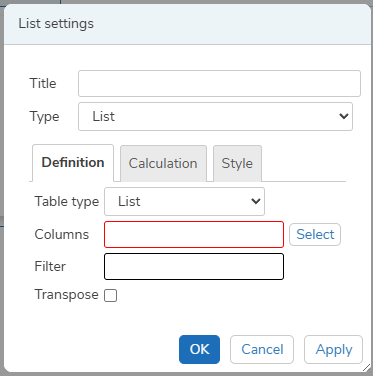
- The Definition tab defines which data is used in the list.
- The Calculate tab gives the option to select how the data is calculated.
- The Style tab gives the option to display a shadow and customise the padding.
Definition
- In Table type, select List.
- In Columns, click the Select button and choose a variable from the list. You can select more than one variable. Click OK to add the variables to the list.
- In Filter, enter the filter criteria, e.g. Q1=2
- Select Transpose, if you want to transpose the list.
Calculate
This tab contains display options for the data.
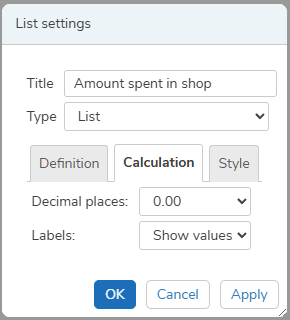
- In Decimal places, choose the number of decimal places from the options available.
- In Labels, choose to show labels or show values in the list.
Style
In the Style tab, you can set the shadow and padding.
Save and Apply
- Click OK to save all the changes.
- Click Apply to apply the changes.
- Click Cancel to abandon the changes.
Click Refresh data to update the list with the latest response data.
Resize the list
You can resize the list box by dragging the resize arrows.
Example
Comments
The list displays other items that customers have purchased.
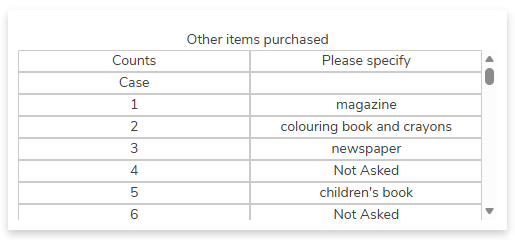
The columns show Q7a, the open-ended question asking customers about any other items they purchased.
Quantities
The list displays the amount spent, formatted to two decimal places.
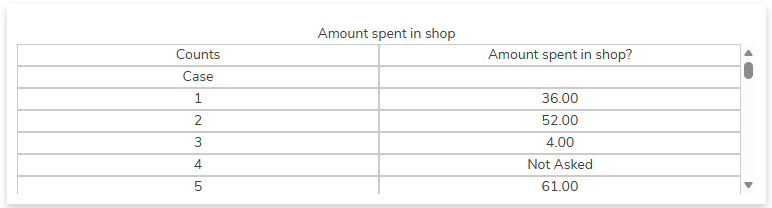
Select the decimal places format required, for example 0.00 and select Show values.