You can start the interviewing process manually following publication of your survey. This makes the survey available to your respondents.
Click the Start interviewing button to make the survey available to participants straight away.
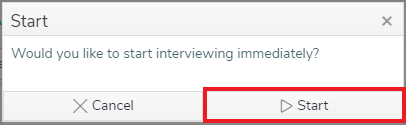
Click the Start button to confirm that you would like to start interviewing.
Note: If you have set a schedule to start at a future date, interviewing will start at this date rather than immediately.
Active web interviews
When you start interviewing you can see the Active web interviews, which shows the number of current interviews in progress. The count increases when an interview starts and decreases when the participant completes the questionnaire or 20 mins later if they do not submit the questionnaire.
Pause interviewing
Once you have started interviewing you can pause interviewing. This can be useful when you need to republish a questionnaire.
Click the Pause interviewing button to pause interviewing.
Click OK to confirm the action. This pauses interviewing.
The Pause interviewing button will become a Resume interviewing button.
You can restart interviewing by clicking the Resume interviewing button.
Click OK to confirm the action. The Resume interviewing button will become a Pause interviewing button.
Stop interviewing
After an interview has started, you can stop interviewing at any time. It is used when the interviewing process has finished. Stopping an interview closes the questionnaire and respondents can no longer start a new response. Interviews that are already live or saved may still be submitted.
Click the Stop interviewing button to stop interviewing.
Click OK to confirm the action. Interviewing has now stopped.
The Pause interviewing and Stop interviewing buttons will be replaced with a Start interviewing button.
Scheduling the interview
Many surveys run over a specified period of time with a preset start and end time. You can plan a survey interview beforehand by setting a schedule.
Navigate to the Collect section of your survey.
The Change schedule button is available after publishing your survey.
Click on the Change schedule button.
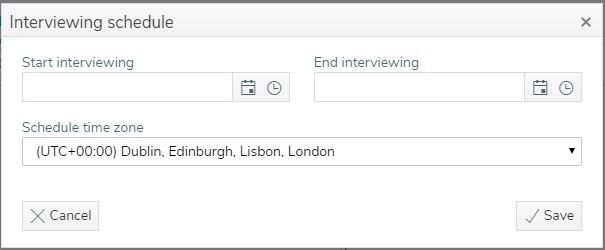
This shows the Interviewing schedule window.
Click to set the date in the Start Interviewing and End interviewing fields.
Click to set the time in the Start Interviewing and End interviewing fields.
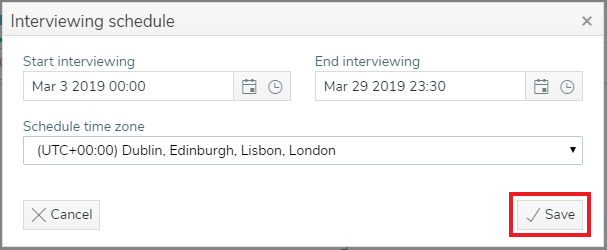
Click Save to save the survey’s interview schedule.
Contents
We use cookies to improve your experience on our website and to show you personalised content. You can allow all cookies or manage them using the settings below.
Allow All
Read more
Cookies Settings
Cookie Box Settings
Cookie Box Settings
Cookie settings
You can decide which cookies you wish to allow and can change your settings at any time. You cannot prevent our use of strictly necessary cookies. For more information about the cookies we use, please see our cookie policy.
With the slider, you can enable or disable different types of cookies:
This website will:
This website won't:
This website will:
Strictly necessary: remember your cookie permission setting
Strictly necessary: allow session cookies
Strictly necessary: authenticate that you are logged into your user account
This website won't:
Functionality: remember your online chat ID
Analytics: keep track of your visited pages and interaction taken
Analytics: keep track of your location and region based on your partial IP number
Analytics: keep track of the time spent on each page and the videos you watch
Analytics: identify the device you are using
Targeting: identify if you contacted or called us as a result of one of our adverts
This website will:
Strictly necessary: remember your cookie permission setting
Strictly necessary: allow session cookies
Strictly necessary: authenticate that you are logged into your user account
Functionality: remember your online chat ID
This website won't:
Analytics: keep track of your visited pages and interaction taken
Analytics: keep track of your location and region based on your partial IP number
Analytics: keep track of the time spent on each page and the videos you watch
Analytics: identify the device you are using
Targeting: identify if you contacted or called us as a result of one of our adverts
This website will:
Strictly necessary: remember your cookie permission setting
Strictly necessary: allow session cookies
Strictly necessary: authenticate that you are logged into your user account
Functionality: remember your online chat ID
Analytics: keep track of your visited pages and interaction taken
Analytics: keep track of your location and region based on your partial IP number
Analytics: keep track of the time spent on each page and the videos you watch
Analytics: identify the device you are using
This website won't:
Targeting: identify if you contacted or called us as a result of one of our adverts
This website will:
Strictly necessary: remember your cookie permission setting
Strictly necessary: allow session cookies
Strictly necessary: authenticate that you are logged into your user account
Functionality: remember your online chat ID
Analytics: keep track of your visited pages and interaction taken
Analytics: keep track of your location and region based on your partial IP number
Analytics: keep track of the time spent on each page and the videos you watch
Analytics: identify the device you are using
Targeting: identify if you contacted or called us as a result of one of our adverts