
Publishing your survey
When your questionnaire design is complete, it’s time to publish your questionnaire and start interviewing so respondents can fill in your survey. This is done in the Collect section of Snap XMP Online.
There are two ways of navigating to the Collect section.
- Click the Collect link from the Conference survey Summary tab in Your work.
- Click the Collect tab from the Online Designer.
Publishing your survey for the first time
Your questionnaire is now ready for publishing. The publishing process creates web pages that run a survey in a web browser. When the Collect tab is selected the Overview is shown by default. This shows the status of the survey and is where you publish the survey.
- Click the Collect tab and go to the Overview section.
- Click the Publish current version button to publish your survey.
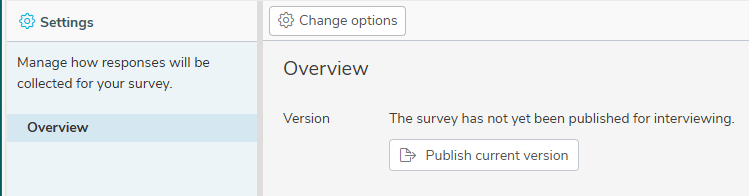
- You will be asked to confirm that you want to publish. Click OK to publish the survey.
When you have published your survey, the Overview now displays further information.
- Overview displays the current survey status.
- Web Interviews shows the details for online interviewing.
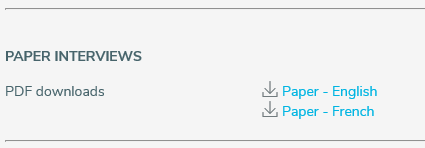
- Paper Interviews contains a PDF download.
Launching web interviews
Changing the Interview URL destination
The respondents use the Interview URL to complete the questionnaire.
You can customise the last section of the Interview URL. Change the URL before you start interviewing to make sure all participants use the URL.
- In the Interview URL, click on
 to edit the URL.
 - Confirm that you want to change the URL.
- The last section of the URL becomes editable.

- Enter the new text in the text box and save.

Previewing the published survey
Previewing the published questionnaire allows you to check how the questionnaire appears in the web browser. Enter a number of test responses and try out the routing and validation. These test responses will not be saved or affect the survey data responses.
You can test the published survey prior and after interviewing has started.
- Click the Launch preview button. This opens the questionnaire in a new web browser tab.
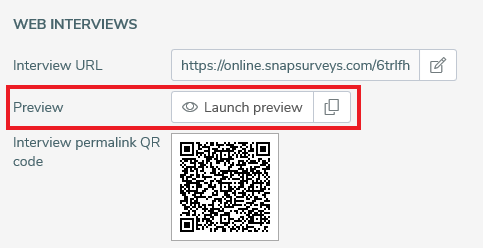
- You will see a notice that this is a survey preview and responses entered in the preview will not be saved and will not affect the survey results.
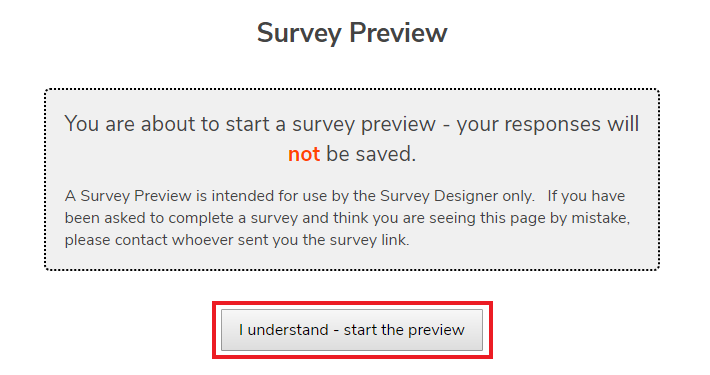
- Click the message ”I understand – start the preview” to proceed.
Using the QR Code
You can download a QR code to access the questionnaire.
- Click the QR link to download a PNG file containing the QR code.
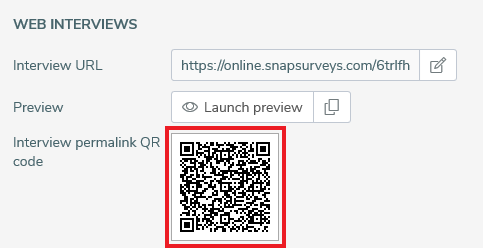
- Send the QR code to the participants to access the questionnaire.
Printing paper questionnaires
In the Paper Interviews section, there is the option to download the questionnaire in PDF format. There is a PDF download available for each paper edition in the survey.
- Click the hyperlink for the language required.
Publishing an updated version of your survey
Sometimes you will need to change a published questionnaire. You must re-publish the updated questionnaire to ensure that participants complete the latest version.
- The Overview version shows a warning message when the questionnaire changes after the last publication.
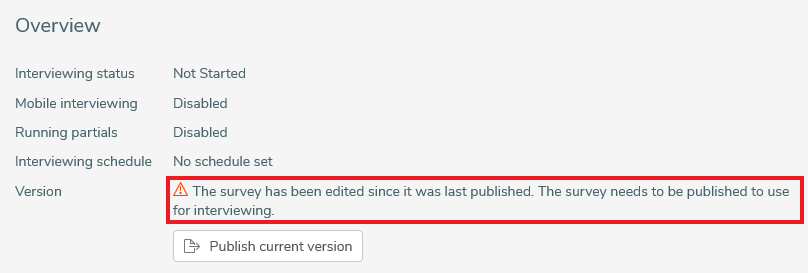
- Before you can publish the latest questionnaire, you need to pause interviewing. Click Pause interviewing.
- Once interviewing pauses you can see the Publish current version button. Click on the Publish current version button to publish the latest version of the questionnaire.
- After you have published, the message indicates that interviewing is using the most recent version of the survey. Click Resume interviewing to restart the interview process.