
Managing partial responses
A partial responses occur when a participant starts an interview but does not submit their response.
There are two types of partial responses.
- Saved partial responses are responses that a participant saves but does not submit. This is available on questionnaires with a save button and is not dependent on the Running partials setting.
- Running partial responses occur when a participant leaves the survey part-way through the interview. The Running partials setting determines whether this partial response saves.
Researchers are able to view all partial responses, decide whether to add them to the survey’s response data, and analyse these responses along with completed responses.
Allow partial responses
You can allow partial responses on most surveys, including logged-in surveys, single-response anonymous surveys and surveys that have quotas and screen outs. Running partials is not available for anonymous multiple-response surveys.
You can see the Running partials status in the Collect Overview section.
- Click on the Change options button to display the Interviewing options dialog.
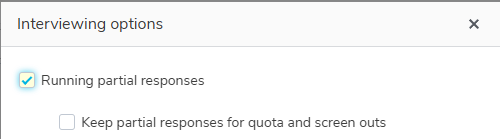
- The Running partial responses option determines whether the selected survey will keep partial responses. Select this option to run partial responses and deselect to turn off partial responses.
- Click Save to save the changes.
NOTE: Partial responses may not include entries made on the current page when running partials, as a partial response saves when the respondent progresses to the next page.
Allow partial responses for quota and screen outs
- Click on the Change options button to display the Interviewing options dialog.
- Select Running partial responses to run partial responses.
- Select Keep partial responses for quota and screen outs to also save any partial responses that triggered the quota or screen out condition.
- Click Save to save the changes.
Finding participants with partial responses
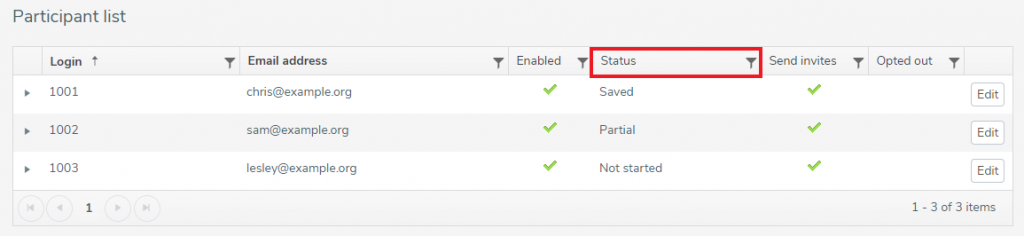
In the Participant list, use the Status filter to view participants who are at different stages of completion.
There are two status values that show a participant has a partial response. The status can be
- Partial where the participant has stopped their response part way through completion
- Saved where the participant has saved their response part way through completion
When you submit the partial responses, which includes saved responses, the status changes to Submitted.
- Navigate to the Collect section and select the Participants side menu.
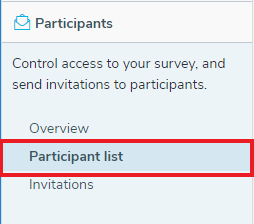
- Select the Participant list option to view the participants’ details in the overview area.
- Click on the Status filter icon in the Participant list header to display the filter selection dialog for the Status column.
- Select the status you wish to filter on, that is Partial, Saved or Submitted.
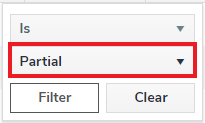
- Click Filter to filter the list and view the participants with the selected Status.
Submitting partial responses
You can include partial responses in your survey’s response data by submitting all partial responses. This option will only be available if you have the correct permissions to view and submit the partial responses.
You will need to consider at what stage of the interview process to submit the partials. Submitting all the partial responses after interviewing closes, ensures respondents are unable to complete the survey.
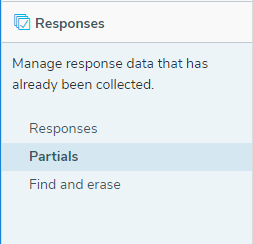
- Navigate to the Collect section and select the Responses side menu.
- Click the Partials option to view all the partial responses.
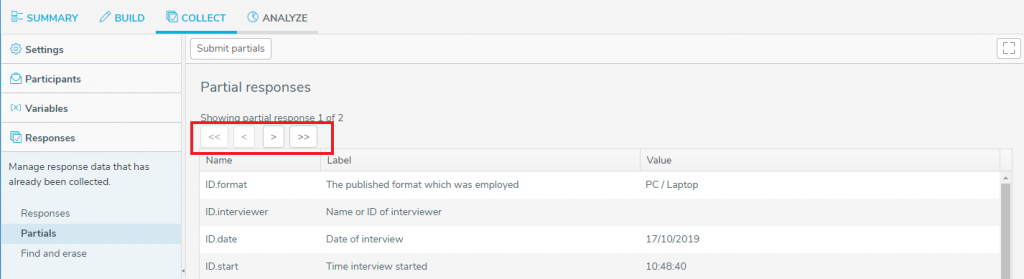
- Use the navigation icons to move through the responses and view the data. You will need the correct permissions to view the partial responses.
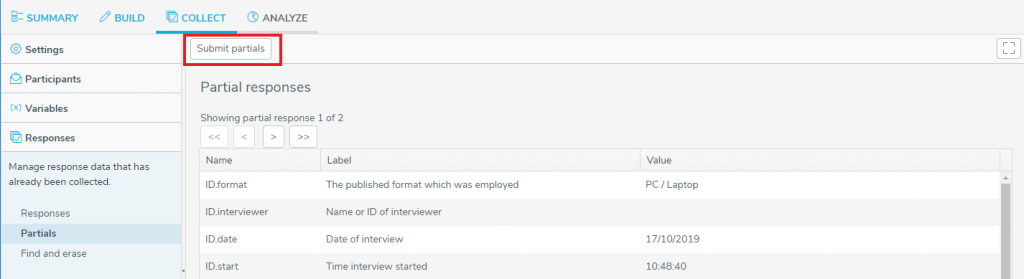
- When you are ready to submit the partial responses, click the Submit Partials button. You will need the correct permissions to submit the partial responses.
- You will see a status message.

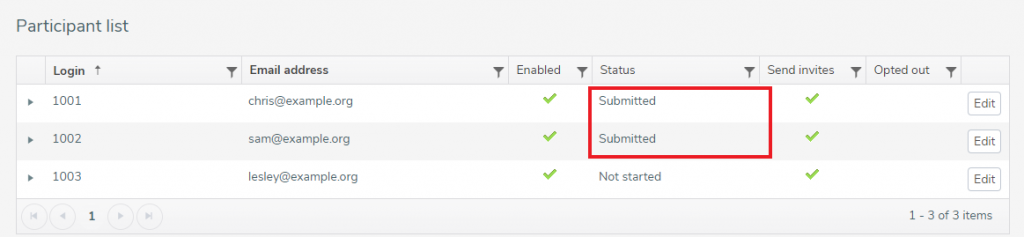
- The Participants List shows the participants with a previous status of Partial or Saved, now have a Submitted status.
- This clears the partial responses from the Partial responses list.
NOTE: If you submit partial responses while interviewing is open or restart interviewing after submitting the partials, it is possible to reset a submitted participant who wishes to complete the survey. This process does not automatically delete the submitted partial response data.
Discarding partial responses
You can discard partial responses by resetting participants based on their completed status. Resetting a participant discards any associated partial responses and the status set to Not Started.
- Navigate to the Collect section.
- Click on the Participants side menu and select the Participant list option.
- You can choose to reset a single participant or a group of participants with the Partial or Saved status.
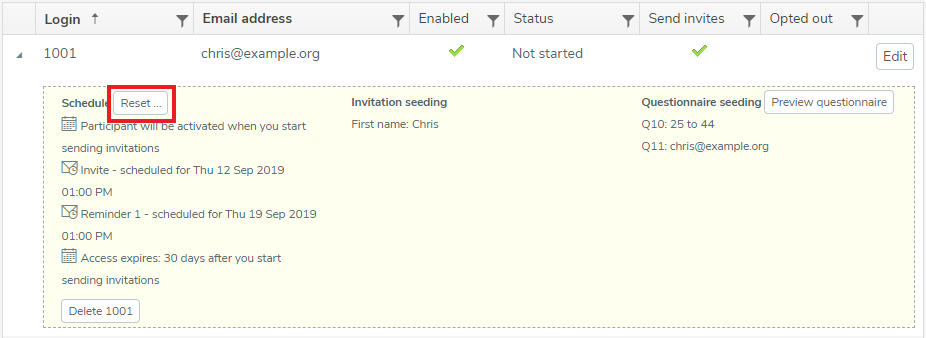
- To reset a single participant select the participant in the list and click on the Reset button in that participant’s details.
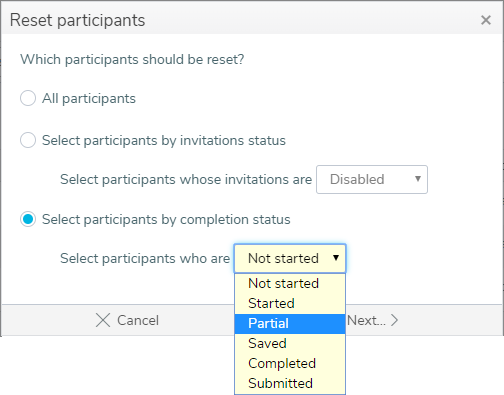
- To reset a group of participants click on the Reset button at the top of the Participant list and select participants by completion status choosing the Partial or Saved status as required.
- The step after is the same for both groups. Select the Completion status option. As described on the dialog this will discard any partial response.
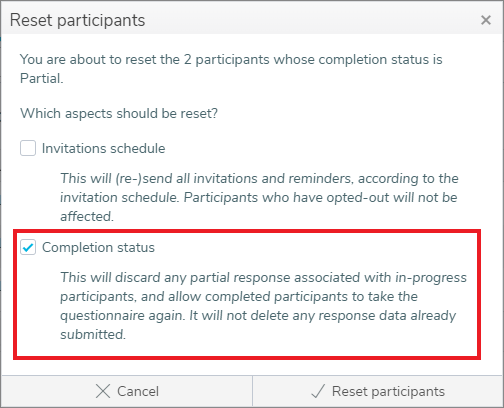
- Click Reset participants to reset the completion status of the selected participants.
NOTE: When you delete a participant or they choose to opt out, this also removes the associated partial.
Partial responses for different participant actions
Using the Save button
| Participant’s action | Anonymous surveys and Logged-in surveys with multiple submissions enabled | Logged-in surveys with single submission only |
|---|---|---|
| Participant saves their response using the save button | This creates a saved partial response. The participant is offered a link to resume the survey from the saved position. This is not dependent on the Running partials setting. | This creates a saved partial response. The participant can login again to resume from the saved position. |
| If after resuming, the participant saves again | This saves the new response data and replaces the last saved or running partial. The same resume link is used and the participant can enter an email address to receive the link. | This saves the new response data and replaces the last saved or running partial. The participant can login again to resume from the saved position. |
Running partials
| Participant’s action | Anonymous surveys and Logged-in surveys with multiple submissions enabled | Logged-in surveys with single submission only |
|---|---|---|
| Participant closes the survey with Running partials enabled | This saves the response data is saved and generates a unique resume link. The participant can enter an email address to receive the link. | This saves the response data. The participant can login again to resume from the saved position. |
| Participant closes the survey with Running partials disabled | The response is lost and the participant will need to restart the survey from the beginning. | The response is lost and the participant will need to restart the survey from the beginning. |
| If after resuming, the participant closes the survey with Running partials enabled | This saves the new response data and replaces the last saved or running partial. The same resume link is used and the participant can enter an email address to receive the link. | This saves the new response data and replaces the last saved or running partial. The participant can login again to resume from the saved position. |
| If after resuming, the participant closes the survey with Running partials disabled | The newly entered response data is lost. If the participant was resuming from a saved response this will still be available, otherwise the participant will need to restart the survey from the beginning. | The newly entered response data is lost. If the participant was resuming from a saved response this will still be available, otherwise the participant will need to restart the survey from the beginning. |