
Online questions with buttons
These are styles of existing questions that use buttons to select an answer choice rather than checkboxes. They are included in the Blank Template and Blank Single Edition Template in Snap XMP.
There are a number of questions that are available with buttons:
- Single Choice – Buttons
- Multi Choice – Buttons
- Grid – Buttons
- Semantic Scale – Buttons
- Carousel – Buttons
- Tab Headers – Buttons
Single Choice – Buttons
- Insert a Single Choice – Buttons question into the questionnaire by double-clicking or by dragging the question to the questionnaire.
- Set the number of Choices to the number of answer choices.
- Set the number of Columns to display the answer choices horizontally.
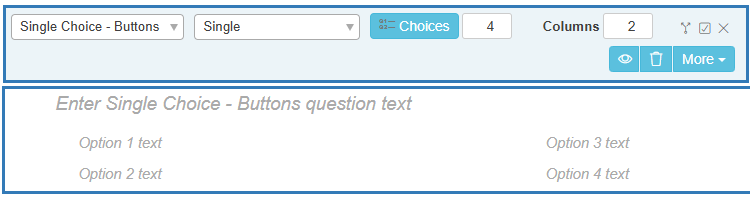
- Enter the Single Choice – Buttons question text and each Option Text answer choice.
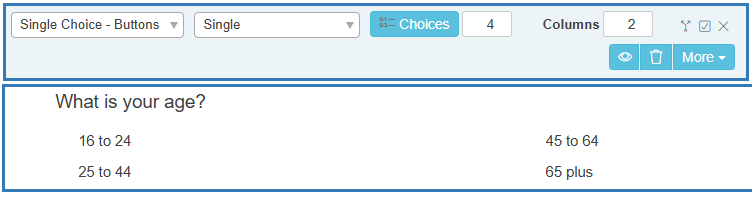
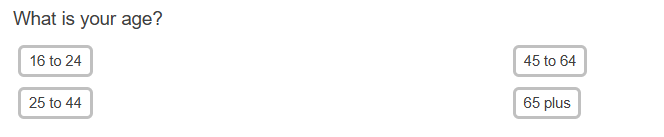
The questionnaire displays the answer options as buttons in the interview.
Multi Choice – Buttons
- Insert a Multi Choice – Buttons question into the questionnaire by double-clicking or by dragging the question to the questionnaire.
- Set the number of Choices to the number of answer choices.
- Set the number of Columns to display the answer choices horizontally.
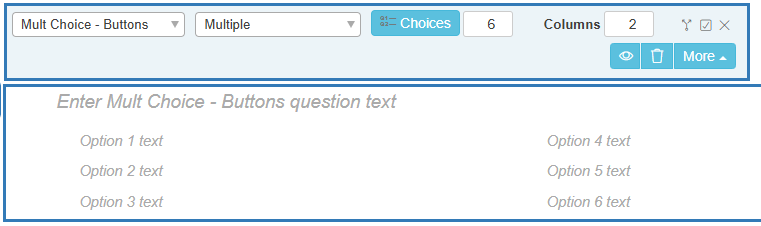
- Enter the Multi Choice – Buttons question text and each Option Text answer choice.
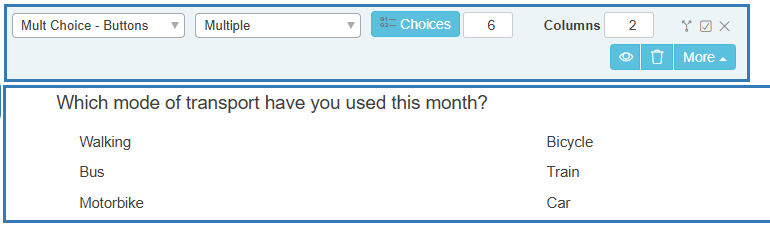
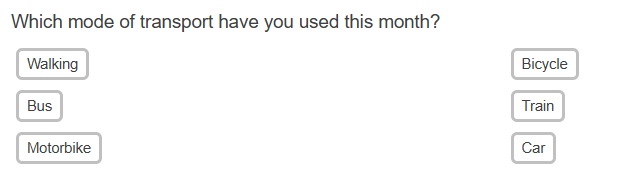
The questionnaire displays the answer options as buttons in the interview.
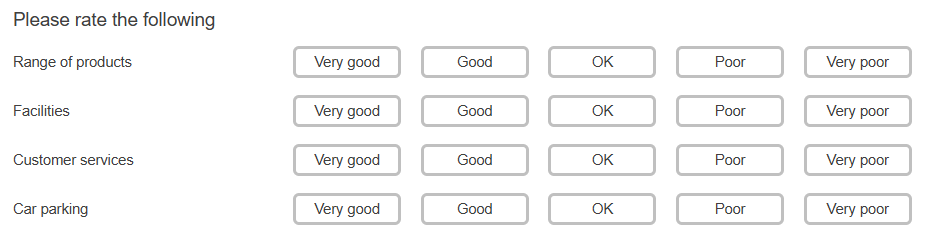
Grid – Buttons
- Insert a Grid – Buttons question into the questionnaire by double-clicking or by dragging the question to the questionnaire.
- Set the number of Rows to the number of aspects to rate.
- Set the Choices to the number of ratings.
- Change the Text width or Answer width to adjust the proportion of the width used for the text and answer sections of the question.
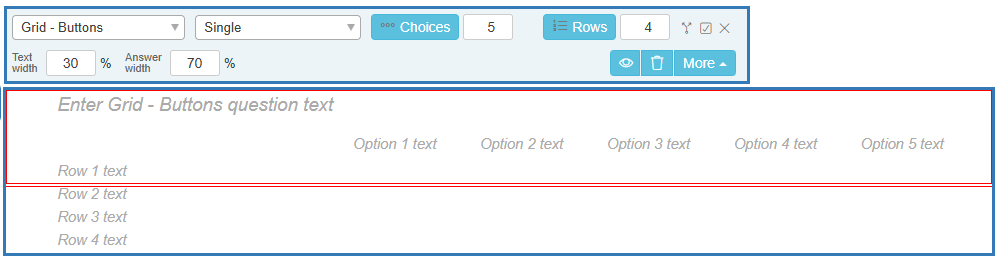
- In the Grid – Buttons question text, enter the question.
- Click in each Row text and add the text for each aspect.
- Click in each Option text and add the text for each rating choice.
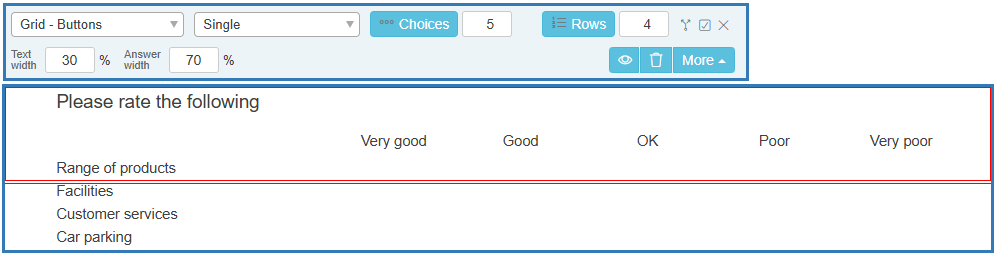
The questionnaire displays the answer options as buttons in the interview.
Semantic Scale – Buttons
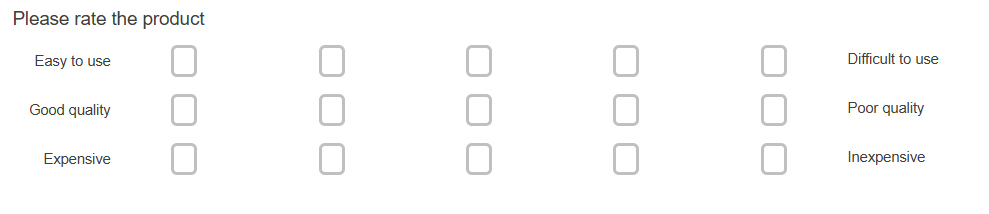
- Insert a Semantic Scale – Buttons question into the questionnaire by double-clicking or by dragging the question to the questionnaire.
- Set the Rows to the number of scales.
- Set the Options to the number of points on the scale.
- Enter the Semantic Scale – Buttons question text as well as the scale start and scale end text.
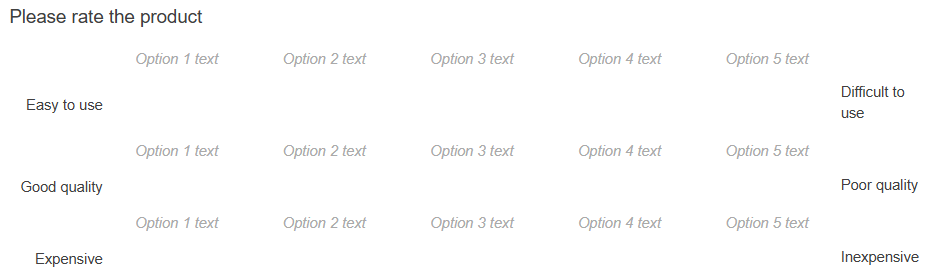
The questionnaire displays the answer options as buttons in the interview.
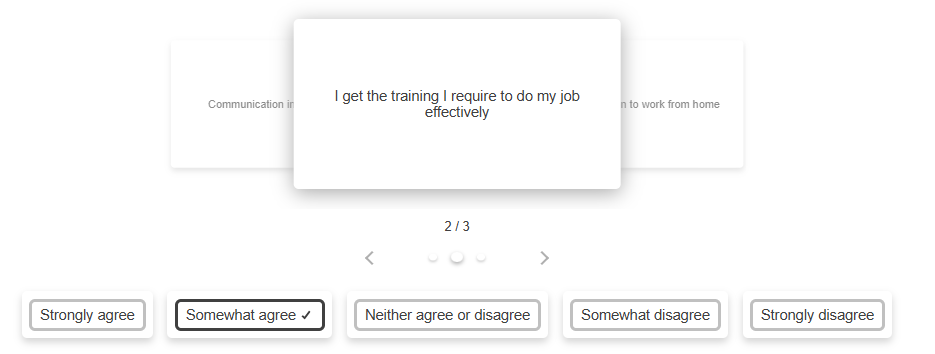
Carousel – Buttons
- Insert a Carousel – Buttons question into the questionnaire by double-clicking or by dragging the question to the questionnaire.
- For a Carousel – Buttons question set the number of Choices to the number of answer choices.
- In Rows, enter the number of rows or aspects required.
- Change the Text width or Answer width to adjust the proportion of the width used for the text and answer sections of the question.
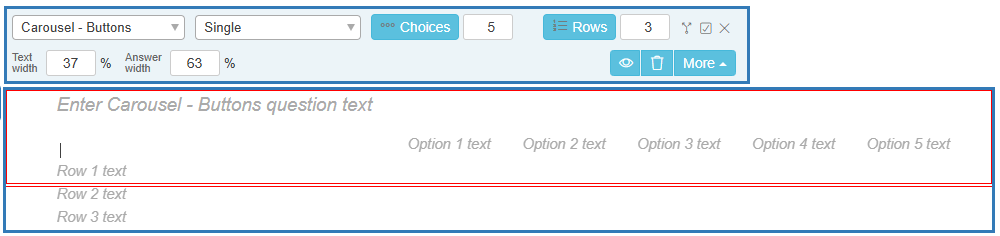
- In the Carousel – Buttons question text, enter the question.
- Click in each Row text and add the text for each row.
- Click in each Option text and add the text for each answer choice.

The questionnaire displays the answer options as buttons in the interview.
Tab Headers – Buttons
- Insert a Tab Headers – Buttons question into the questionnaire by double-clicking or by dragging the question to the questionnaire.
- Set the number of Choices to the number of tabs required.
- In Columns, enter the number of columns that you want the tabs displayed. This is usually set to 1.
- In the Tab Headers – Buttons question text, enter the question.
- Click in each Option text and add the text for each tab header.
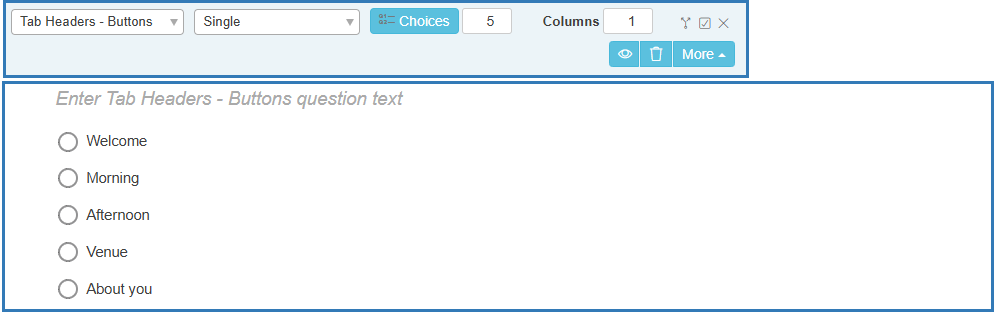
The questionnaire displays the tab options as buttons in the interview.

Other question styles
- Titles and Instructions
- Adding a Logo to a title
- Single Choice questions
- Multiple Choice questions
- Show other response
- Drop-down questions
- Grids
- Semantic scales
- Inline questions
- Compound grids
- Drag Rank
- Drag Categorize
- Carousels
- Open ended questions
- Date and Time questions
- Attaching a file
- Inserting a separator