Adding an image
There are two ways to add an image to a dashboard:
- adding an Image widget, useful for individual images
- inserting an image into a Title, Heading or Narrative, useful for a combination of text and images
Adding an Image widget
- Open the Dashboard in the Edit option.
- Click the Insert widget menu, if it is not shown.
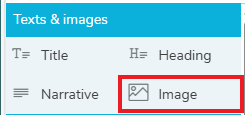
- In the Text & images menu, select Image and drag to the dashboard editor.
- Click the Select Image button.
- Select the image file.
- Click Open.
- You can resize the Image box by dragging the resize arrows.
In the Settings, you can set the shadow and padding in the Style tab.
Insert an image in text
- Position the cursor in the text at the location where you require the image.
- Click Insert image from the toolbar.

- Select the image file.
- Click Open. This inserts the image at the cursor location.
Maximum number of images
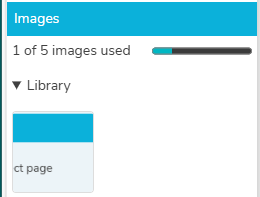
You can add a maximum of 5 images to a dashboard. You can keep track of the images in Dashboard properties.
- Open the Dashboard in the Edit option.
- Click the Dashboard properties menu. This shows how many images you have used.