
Generate multiple QR codes and interview links
Create multiple interview links and QR codes based on a category, for example, based on location.
Multiple QR codes and interview links are not available for logged in surveys.
Include the category question
Add the category question to the questionnaire as a Single Choice question. This provides the information to group the respondents who will receive the relevant interview links or QR codes. For example, displaying a poster that includes the questionnaire QR code and interview link at different locations in your organisation.
Define the category
When the questionnaire is complete, publish the survey.
- Click the Collect tab, which opens in the Overview section.
- Click the Publish current version button to publish your survey.
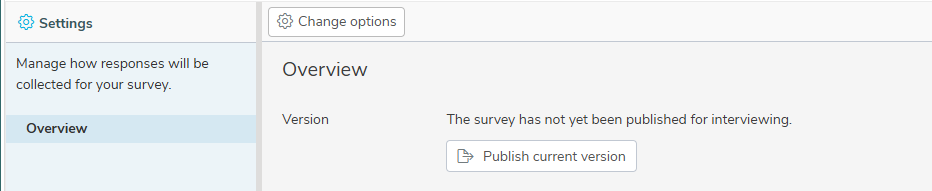
After publishing for the first time, the Web Interviews section becomes available. You can set the category used to categorise the interview links and QR codes.
- Click the Define categories button.
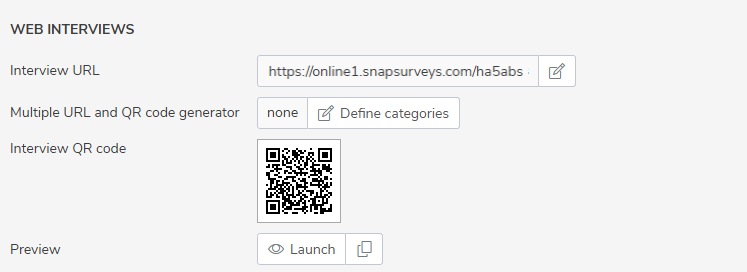
- In Generate multiple URLs using variable, select the survey variable that will group the respondents.
- By default, all codes are used. If you want to use a subset of the codes, enter the mask expression in the Specify codes (optional) box. You should enter the code mask as a comma-separated list of numbers, for example, enter 1,2,5 to include the codes with values 1, 2 and 5 only.
- Click Save to use the selected category.
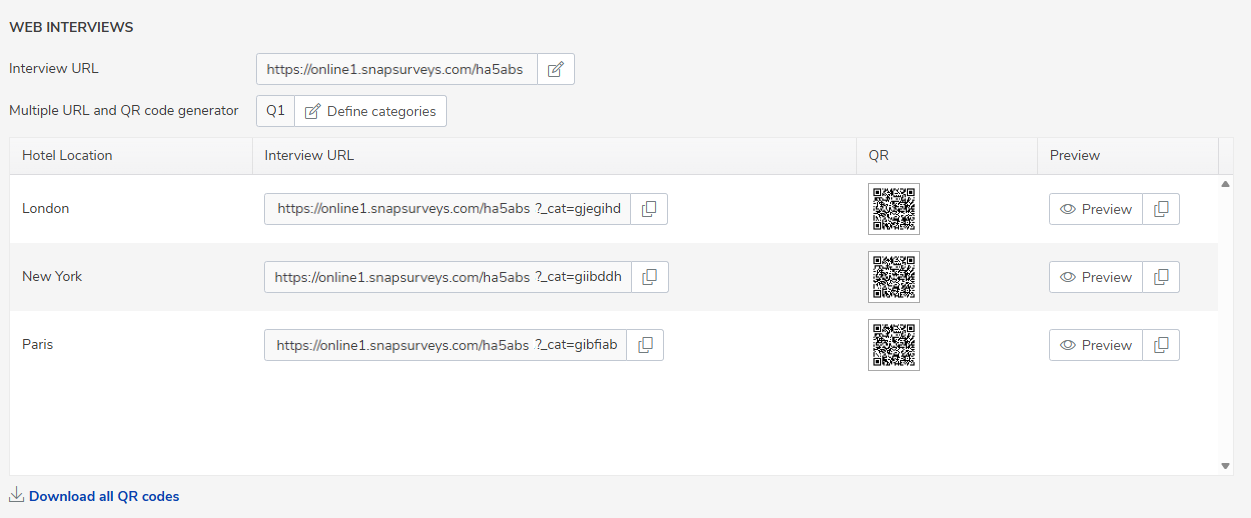
This shows each code available in the category along with the Interview URL, QR code and Preview link.
Preview the questionnaire
To test the questionnaire for each category code, click the Preview link for that code.
Download the QR codes
Click Download all QR codes to download all the QR codes to a zip file. Each QR code is identified by the category label appended to each filename.
You can also click an individual QR code to download the high resolution PNG file containing that QR code.