
Carousel questions
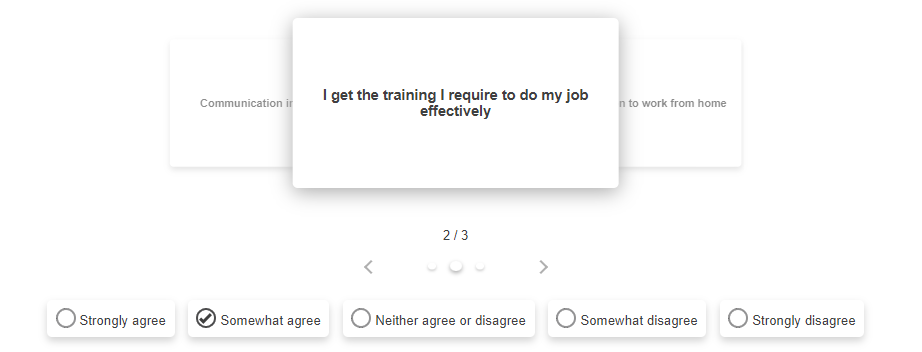
A carousel is a way of displaying a group of questions. Each question is shown on a card with the answers and the carousel moves onto the next question automatically or manually by clicking navigation buttons. The respondent can navigate through all the cards to review their answers.
This question style is a great way of showing large grids on smaller screens as the respondent only sees one question row at a time. This helps ensure that the respondent does not miss a question row as they see one row at a time.
Adding a carousel
- Select the Carousel item from the Single Choice questions section of the Insert question menu.
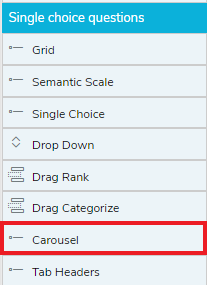
- Insert a Carousel question into the questionnaire by double-clicking or by dragging the question to the questionnaire.
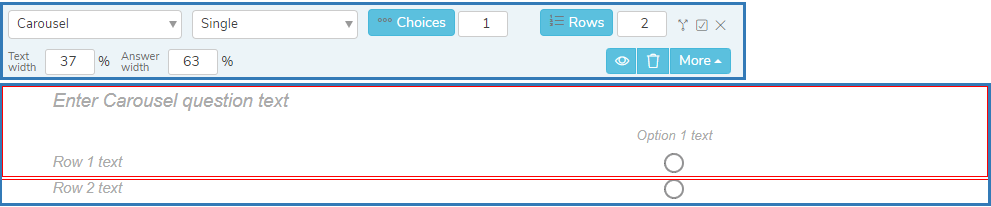
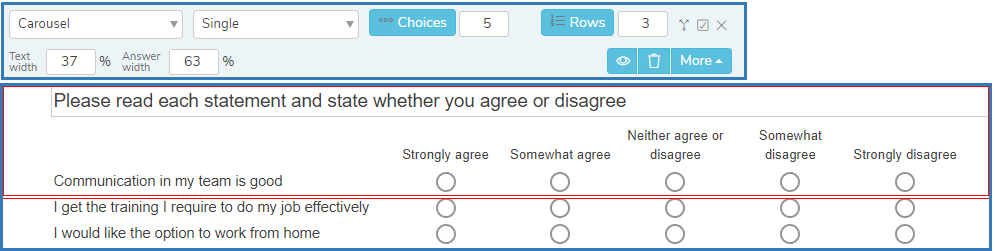
- For a Carousel question set the number of Choices to the number of answer choices.
- In Rows, enter the number of rows or aspects required.
- Change the Text width or Answer width to adjust the proportion of the width used for the text and answer sections of the question.
- In the Carousel question text, enter the question.
- Click in each Row text and add the text for each row.
- Click in each Option text and add the text for each answer choice.
Using images in carousel questions
Adding images to a questionnaire make it more engaging, helping to increase the responses. You can add an image to any question text.
- Place the cursor in the grid row text.
- Click the Insert an Image button on the Format toolbar. This opens the Image Browser dialog.

- Click the Choose an image button to select an image.
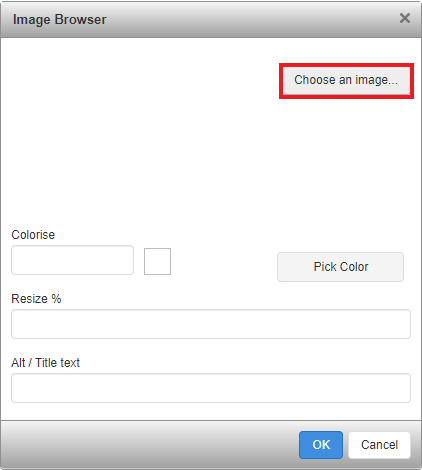
- The Select an image to insert dialog shows the available images. If this does not show your image, click the Choose file button to find and select the image.
- Select the image you want to insert and click OK. This takes you back to the Image Browser.
- Depending on the image selected, you can change the color using the Pick Color option.
- Depending on the web browser, you can resize the image using the Resize % option.
- Each image can be provided with a description in the Alt/Title text, which becomes the tool tip. The respondent see the alternative text when they are unable to see the image. Voice readers active on the browser will also read the text description.
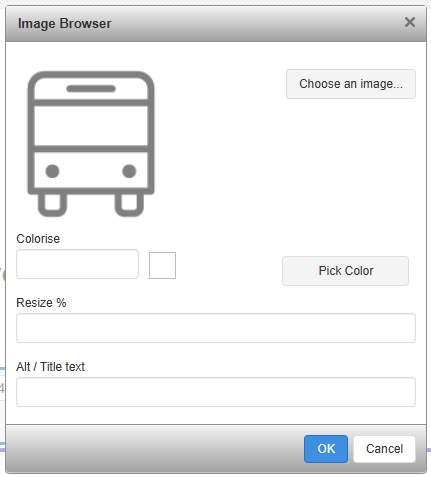
- Click OK to save the changes. This inserts the selected image at the cursor location.
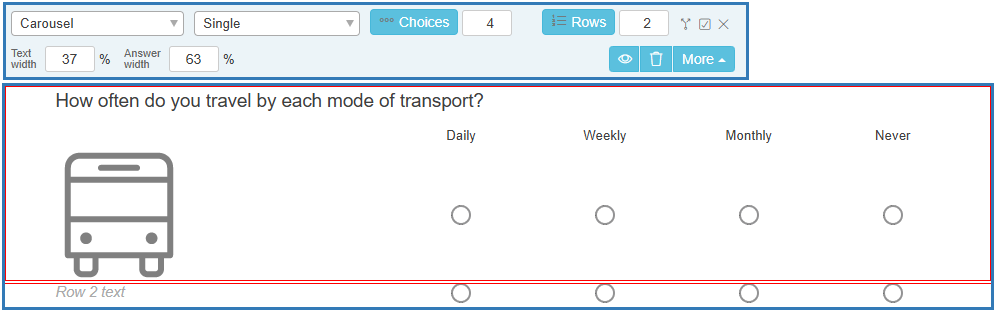
Repeat this for all answer choices in a question and increasing the number of columns to the number of choices produces a question with images shown across the page.
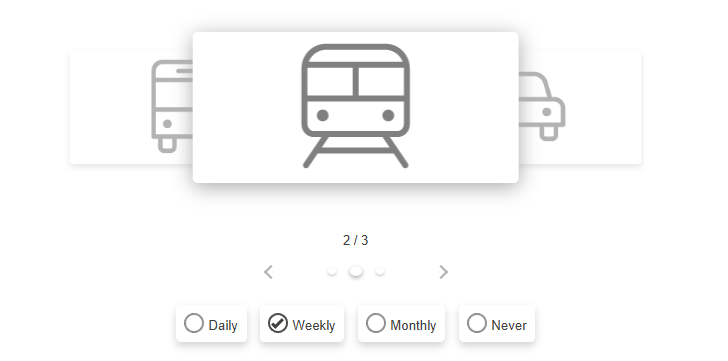
During the interview, the images are shown in each carousel card.
Other question styles
- Titles and Instructions
- Adding a Logo to a title
- Single Choice questions
- Multiple Choice questions
- Show other response
- Drop-down questions
- Grids
- Semantic scales
- Inline questions
- Compound grids
- Drag Rank
- Drag Categorize
- Adding tabs
- Open ended questions
- Date and Time questions
- Attaching a file
- Inserting a separator